
Your photo library is
keeping copies of itself.
Img DeDup fingerprints every photo and video on your iPhone, groups the byte-identical copies, the near-identical re-saves and the leftover burst frames, and shows you exactly which copy it would keep. You decide what goes. Nothing leaves the phone.
Free while in beta. iPhone and iPad, iOS 26 or later.
Four passes, then a decision
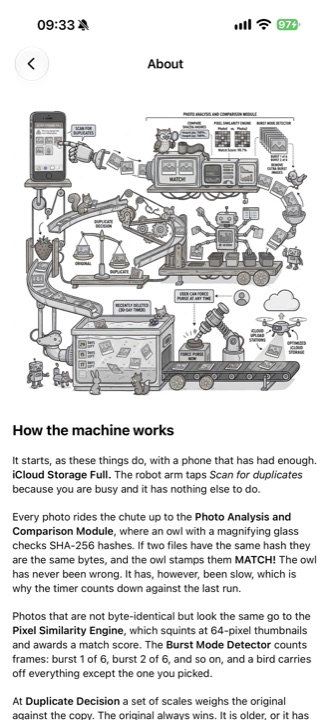
A large library cannot be compared photo against photo — that is billions of comparisons. Img DeDup narrows the field cheaply first and only does expensive work on what survives.
- Every photo and videoThe whole library, hidden items and individual burst frames included.
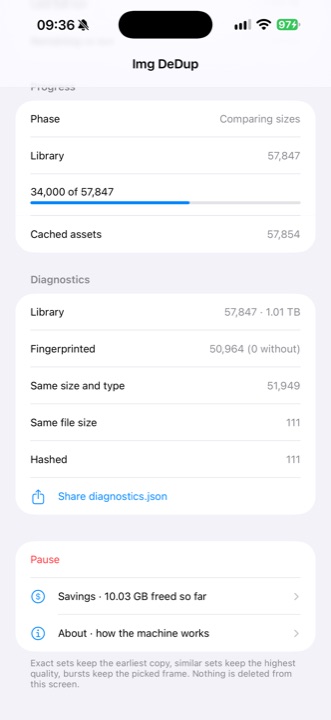
- Rule most of it outDimensions and file size are already known and cost nothing to read. In a library of 57,847 this leaves a few hundred candidates.
- Fingerprint what survivesSHA-256 for byte-identical copies. A separate perceptual fingerprint for the same picture saved twice with different bytes.
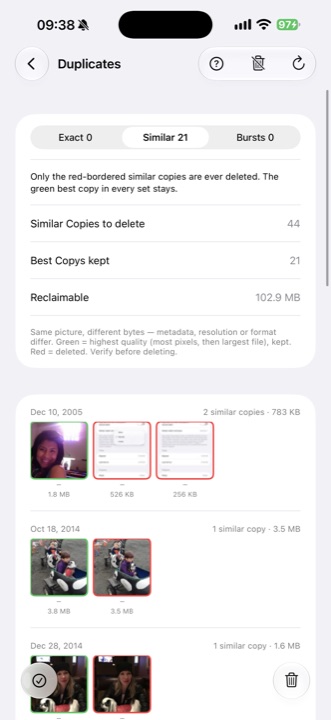
- Group into three kindsExact keeps the earliest copy. Similar keeps the highest quality — most pixels, then largest file. Bursts keep the frame you or Photos picked.
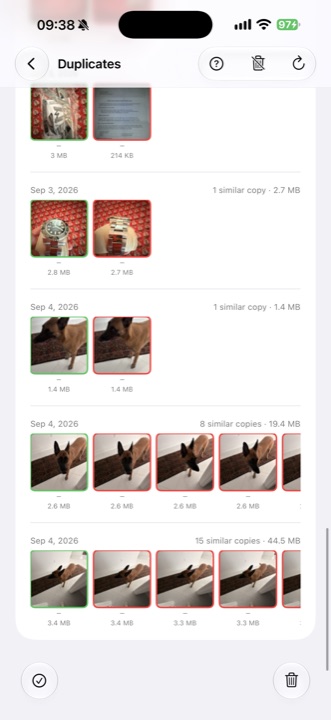
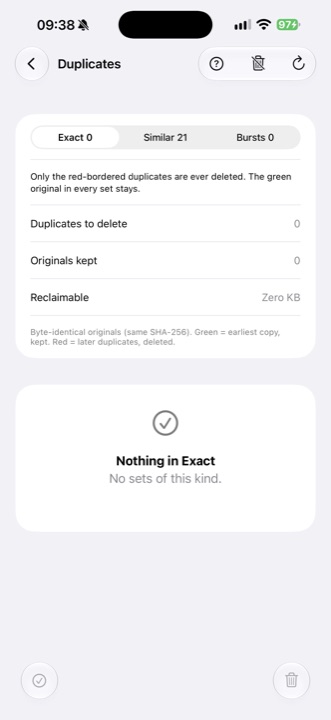
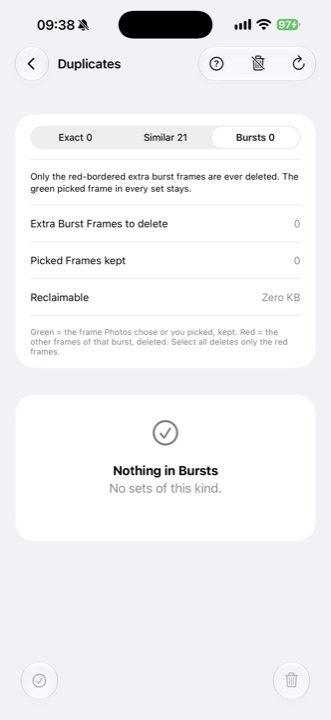
- You reviewGreen is kept, red would go, and every set is shown. Nothing has moved yet.
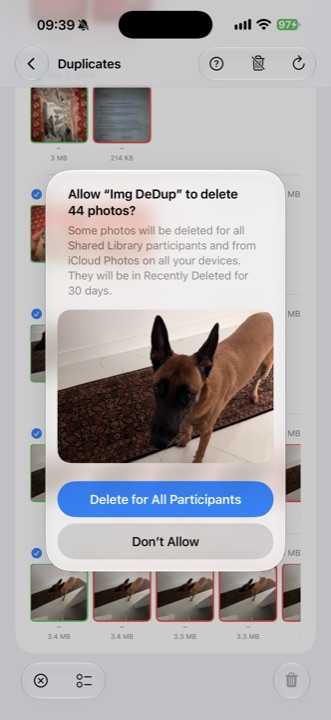
- Two confirmationsThe app asks, then iOS asks again in its own dialog with its own count.
- Recently Deleted, 30 daysWhere the copies land. No third-party app is permitted to empty this bin.
- You empty it in PhotosOnly then is the space really released, and only then does iCloud start recalculating.
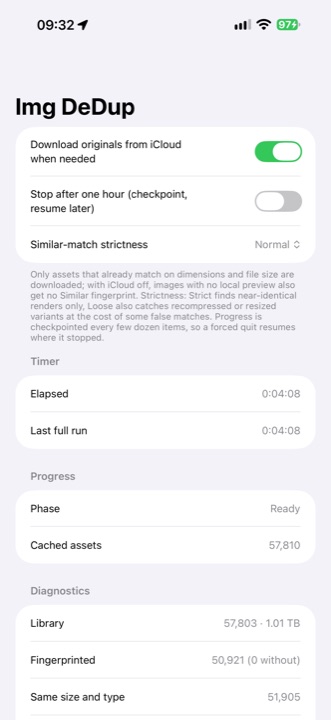
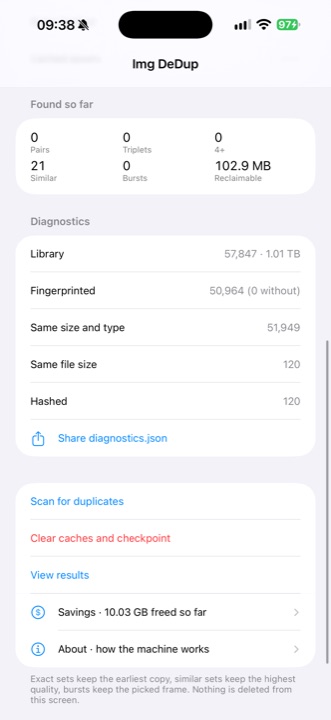
Scanning is checkpointed every few dozen items, so a forced quit resumes where it stopped rather than starting again. You can also cap a run at one hour and finish it later.
What the glyphs mean
The results screen is dense on purpose — a set of fifteen copies should be one decision, not fifteen. This is the same legend the app shows the first time you open it, and from the question mark afterwards.
Top bar
- This legend
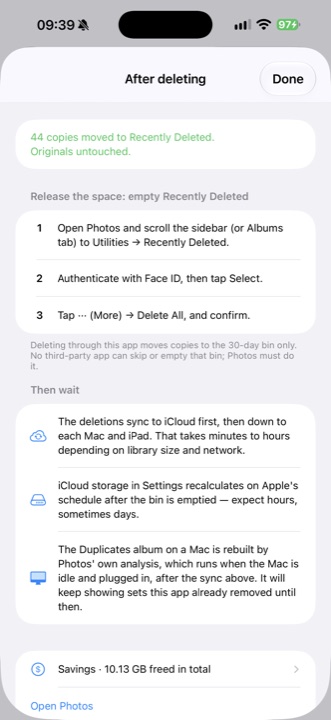
- After deleting
- Rescan, from cache
Bottom bar
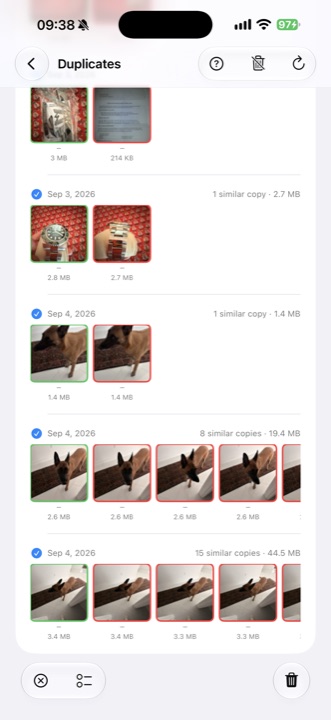
- Select sets
- Bulk delete
- Stop selecting
- Select all, tap to clear
- Delete red copies
In the rows
- Green border: kept
- Red border: deleted
- The original is safe
- Red copy is a favorite
- Red copy has edits
- Copy is in Hidden
- No preview loaded
- Tap a row, swipe to delete
Bulk delete includes favorites by default. That is deliberate, and the heart marks every set where it applies so you can see which ones before you confirm.
Every screen
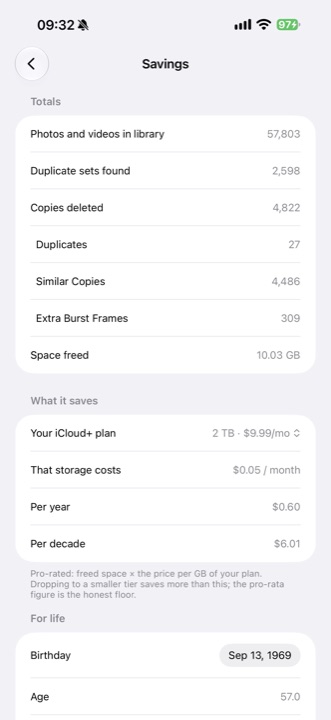
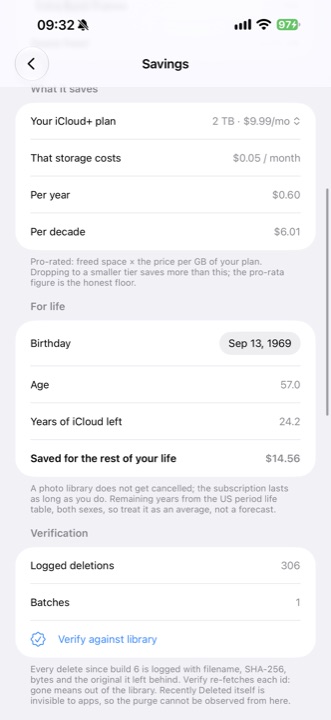
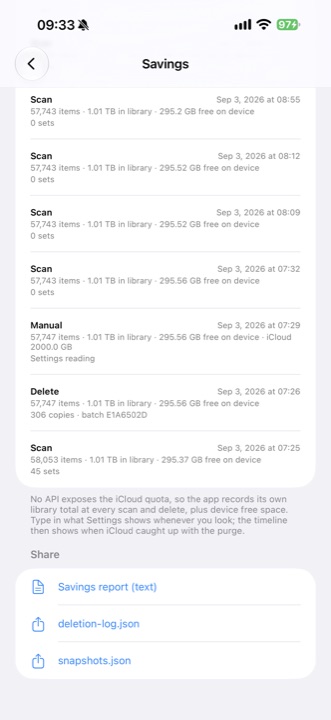
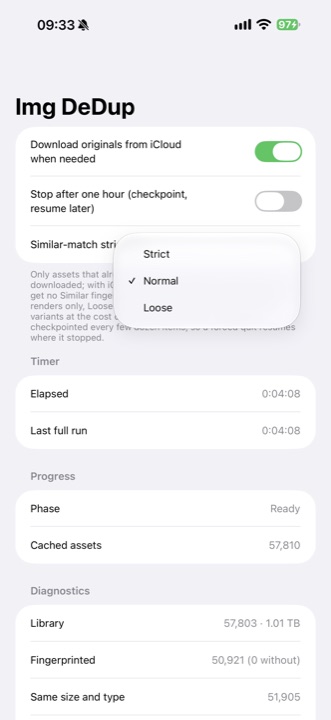
Captured from the shipping build on an iPhone 17 Pro Max, against a real library of 57,847 photos and videos totalling 1.01 TB. Nothing here is a mockup.
What it does
Three kinds of duplicate, one rule for each about what survives.
Exact copies
Byte-identical by SHA-256. The earliest copy is kept, every later one is offered up. No judgement is involved and none is asked of you.
Similar copies
The same picture stored twice — re-saved, re-compressed, resized. A perceptual fingerprint finds these where a checksum cannot. The highest quality copy stays.
Burst frames
The frame Photos chose, or the one you picked, is kept. Only the extra frames around it are ever offered up.
Adjustable strictness
Strict finds near-identical copies only. Normal is the default. Loose also catches recompressed and resized variants, at the cost of some false matches.
Nothing is skipped
Hidden photos and every frame of a burst are scanned rather than passed over. A copy you cannot see still occupies the same storage as one you can.
Checkpointed scanning
Progress is saved every few dozen items. A forced quit resumes where it stopped. You can cap a run at one hour and finish it another time.
Works with iCloud Photos
Originals are pulled down only when a comparison actually needs them. Leave that off and the scan uses local previews, doing less but downloading nothing.
A written record
Every deletion is logged with filename, SHA-256, byte count and the copy that was kept. Verify against library re-fetches each one and reports what is gone.
Exportable evidence
The deletion log, the snapshot history and a plain-text savings report can all be shared out of the app, in formats you can read without it.
Priced against your plan
Freed space is valued against the iCloud+ tier you actually pay for, pro-rated per month, per year and per decade. The pro-rata figure is the honest floor.
No account, no server
Nothing is uploaded and nothing is tracked. The only network traffic is Apple's own, when iCloud sends down an original the app asked to read.
It cannot purge for you
Deleted copies go to Recently Deleted for 30 days. No third-party app can empty that bin. The app says so plainly and shows you the steps.
Questions
Three limits worth knowing before you start: this app finds copies and proposes deletions, but it cannot empty Recently Deleted, it cannot make iCloud recalculate your storage any faster, and it cannot see inside Apple's own Duplicates album. Everything below follows from those.
Does it delete anything on its own?
No. The review screen only proposes. Green is the copy it would keep, red is what it would delete, and nothing moves until you tap the delete button. iOS then asks a second time, in its own dialog, naming the exact number of photos.
Where do the deleted copies go?
To Recently Deleted, where they sit for 30 days. That is a system rule and no third-party app can skip it or empty it. To actually release the space, open Photos, go to Utilities then Recently Deleted, authenticate, and Delete All. The app shows these steps after every deletion because it cannot do them for you.
Why has my iCloud storage not dropped?
Three separate delays stack up. The deletions sync to iCloud first, then down to each Mac and iPad, which takes minutes to hours. Recently Deleted still holds the copies until you empty it. And the storage figure in Settings recalculates on Apple's own schedule after that, which can take hours or days. Nothing is wrong; there is no API that makes any of it faster.
What counts as similar?
The same picture stored twice with different bytes — re-saved, re-compressed, resized, or exported and imported again. A perceptual fingerprint catches these where a checksum cannot. Strictness is yours to set: Strict finds only near-identical copies, Normal is the default, and Loose also catches recompressed or resized variants at the cost of some false matches.
Does anything leave my phone?
No. There is no account, no server and no analytics. Fingerprinting, comparison and deletion all happen on the device. The only network traffic is Apple's own, when iCloud sends down an original the app needs to read.
Can I check what it deleted?
Yes. Every deletion is written to a log with the filename, SHA-256, byte count and the identifier of the copy that was kept. Verify against library re-fetches each logged identifier and reports which are gone. You can export the log, the snapshot history and a plain-text savings report at any time.
Why does the Duplicates album in Photos still show sets?
That album is built by Photos' own analysis, which runs on a Mac only while it is idle and plugged in. It keeps showing sets this app already removed until that pass runs again. The two are looking at the same library with different schedules.
Will it touch photos that are not really duplicates?
Exact sets are byte-identical by SHA-256, so there is no judgement involved. Similar and burst sets are judgement, which is why every set is shown before anything happens and why strictness is adjustable. Hidden photos and every frame of a burst are included in the scan rather than skipped, because a copy you cannot see still costs storage.
Three ways to get it
There is one app and one build of it. What differs is how you get hold of it: two of these cost nothing and ask for patience or a developer account instead, and the third is the one that simply installs.
TestFlight — free, 90 days
Open to anyone, no invitation and no approval step. Install Apple's TestFlight app, open the public link, and the beta installs alongside everything else. Each build stays usable for 90 days from the day it is published; a new build resets the clock, so the beta keeps running as long as it is being updated.
Build it yourself — free
The app is one Xcode project generated by XcodeGen. Clone it, run
xcodegen generate, and either build straight to your own
device from Xcode or produce a Release .ipa and sideload
it with AltStore or Sideloadly. Nothing is obfuscated and there is no
server to stand up — what you build is what is on TestFlight.
A free Apple ID will sign it, but that signature lasts seven days before the app has to be rebuilt. A paid Apple Developer account is what removes that clock.
Buy it — for the time back
One purchase. No subscription, no in-app purchase, no ads, no account, and it updates itself like any other app. You are paying to skip both routes above — the certificates, the rebuilds, the seven-day clock — and for the work behind it.
On the App Store once the beta has run its course.
Whichever route you take, the app asks for full read and write access to Photos on first launch. Read-only access cannot delete, so that is what the prompt has to request.